How to stream interactive games on TikTok Live
Start an interactive TikTok LIVE game in your browser on Windows, Mac or mobile, or use the Windows launcher. You need a ScrollPlay account, a compatible device and an internet connection. Broadcasting also requires TikTok LIVE access and a screen-sharing or capture option for your account.
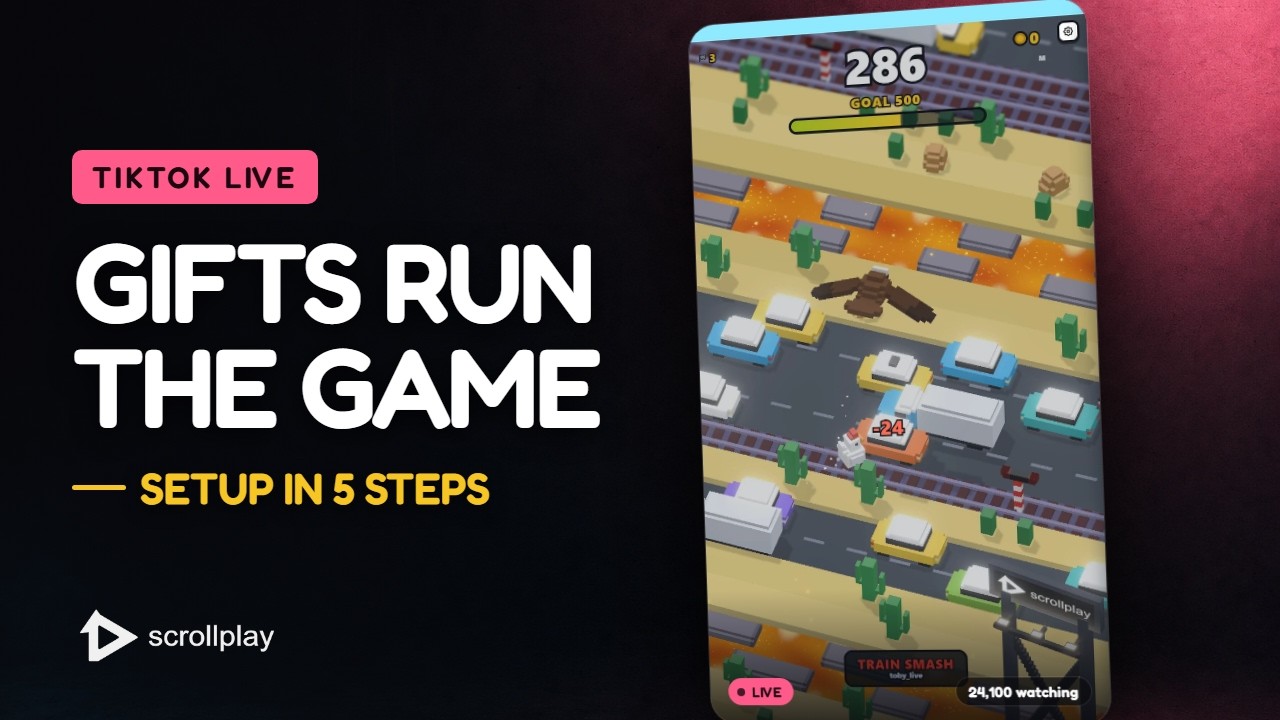
The whole setup in 30 seconds — download, connect your TikTok, go live.Watch on YouTube ↗
On this page
What you're setting up
Interactive TikTok Live games run on your PC while your audience participates through TikTok gifts, likes, and follows. The ScrollPlay launcher handles the whole pipeline: it connects to your live session, listens for audience events, and routes each one into the game as a real gameplay effect. Your job is just to play — and to survive whatever your chat throws at you.
Step 1 — Open ScrollPlay
Open Web Launcher in a compatible browser on Windows, Mac, iPhone/iPad or Android. On Windows you can also use the desktop installer, which includes automatic updates. Sign in or create an account. DEFUSE!, Jello Merge and Jaywalkin' are free, so you can try the setup without a subscription.

Step 2 — Connect your TikTok username
In the launcher, open the TikTok Live connection panel and enter your TikTok @username. This is how ScrollPlay finds your live session — there is no password or TikTok login involved; the launcher reads the public gift and like events from your stream. Connect it once and the launcher reconnects automatically each time you go live.

Step 3 — Launch a game
Pick a game from your library and hit Play. Each ScrollPlay game opens in its own capture-ready window, separate from the launcher, so streaming software sees it as a clean game source. If you're choosing your first game, Gnome Jump is the easiest to explain to a new audience: gifts make you jump higher or knock you down, and everyone immediately understands the stakes.

Step 4 — Add the game to TikTok Live Studio
On a computer, capture the browser or game window in your streaming software. The Windows launcher opens a separate game window for capture. On mobile, use the screen-sharing option available to your TikTok account, then tap Overlay in the game to place widgets over the gameplay. Tap Done to keep playing with the overlay visible. Check the capture before broadcasting.
Step 5 — Test a gift, then go live
Before going live, use the launcher's Studio panel to fire a test gift and confirm the effect lands in-game. Then start your TikTok Live as normal. The first time a real viewer sends a Rose and the game visibly reacts, your chat will figure out the rest on its own — but it helps to pin a comment explaining what each gift does. See the gift-to-event reference for the full mapping in every game.

Troubleshooting
Gifts aren't triggering effects: confirm the launcher shows your live session as connected (it must be an actual live stream, not a practice room), and that you entered the correct @username.
Live Studio shows a black window: add the game as a Window source rather than Game capture, or toggle hardware acceleration in Live Studio's settings.
Game won't launch: the launcher requires an internet connection to verify your session — check your connection and restart the launcher. Still stuck? Reach us via support.


